Guide · How-to
Using the library, Google sign-in, and backup files
How to browse your saved patterns and colorwork charts, pick up where you left off on other devices with Google sign-in, or move everything with a backup file.
You can use every feature of this site without signing in. What changes is where your work is saved.
- Guest (not signed in): saved only inside the browser on the device you’re using. Even the site owner can’t see it.
- Google sign-in: saved in an account storage space that only you can read and write. A chart you saved on your phone can be picked up on your computer.
What gets saved
- Pattern cards: everything you entered, your design settings, the cover photo, and its position
- Colorwork charts: cell colors, yarn colors, stitch type, gauge, flat or in-the-round setting, and Follow Along progress
- Knit Calendar: photos of your projects by date, project names, notes, and rows worked
Sign in with Google
- Click Sign in with Google at the top right.
- The first time you sign in, you’ll see “Move what’s saved on this device to your account?” Click “Move to account” and the patterns, charts, and calendar entries you saved as a guest are moved to your account. The guest data on this device isn’t deleted when you do.
- If you’d rather move it later, you can do it any time from the account menu by clicking your name at the top right.
What you can do in the library
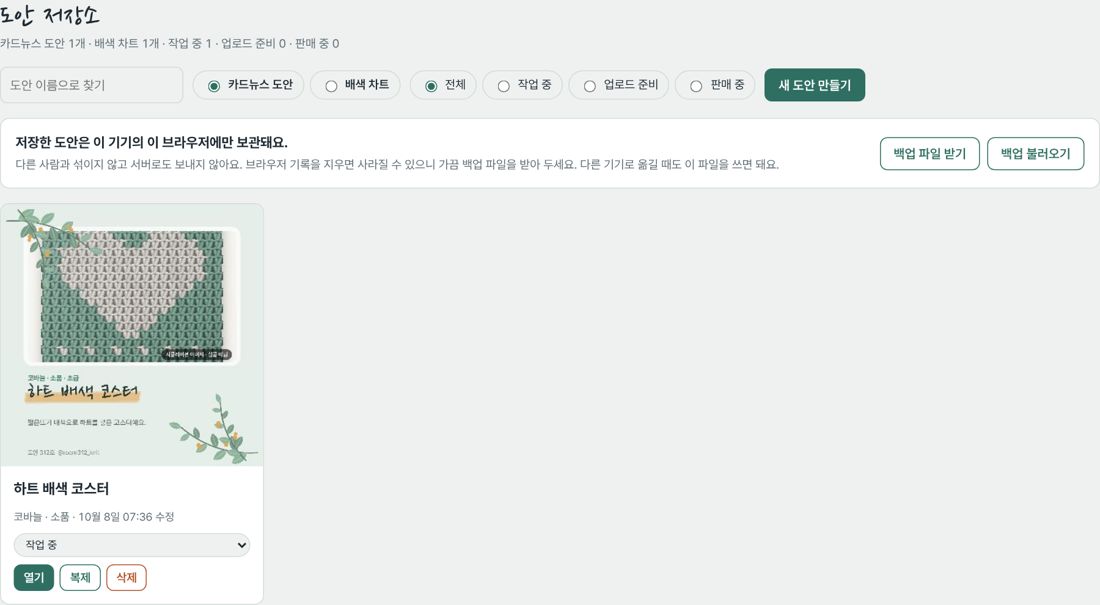
- Search by name, and filter by status (In progress / Ready to upload / For sale)
- Open to edit again, or Duplicate to start a similar pattern
- Delete takes two clicks so you don’t remove something by mistake.
Backup files
Click “Download backup file” at the top of the library, and the patterns, charts, calendar entries, and photos in the library you’re using now (guest or account) are saved as a single file. If you use the site as a guest, they can disappear when you clear your browser history, so it’s worth downloading a backup now and then.
- Download the file with “Download backup file.”
- Open the site on another device or in another browser and choose that file with “Import backup.”
If an item already exists, the more recently edited version is kept, so importing more than once won’t create duplicates.
Deleting your account data
Use “Delete all data saved to your account” in the account menu to delete what you’ve saved to your account yourself. If you also want your sign-in record deleted, let us know through Contact.
Colorwork chart share codes
Click Share on a colorwork chart card in the library and a share code like “Yarn-K7MP2” is generated automatically (Google sign-in required). Click Copy share code and send it along. The code is also shown in large type on the screen. The person who gets it pastes it into My library → Colorwork charts → Get chart by code, and the chart is added to their own library. They don’t need to sign in. If you send it with “Copy link,” the import screen opens as soon as they open the link.
- A chart they receive is a copy exactly as it was when you shared it. It won’t change if you edit the original later.
- Click “View share code → Stop sharing,” and nobody can get the chart with that code anymore.
- For the chart of a pattern you sell, please send it only to people who bought it. Anyone who knows the code can get the chart.