Guide · How-to
Follow Along: highlight one row at a time as you stitch
How to use the Follow Along screen, which shows your current row, stitching direction, and stitch counts by color, without drawing lines on your chart.
The most tedious part of colorwork is constantly checking “Which row am I on?”, “Which side does this row start from?”, and “How many white stitches was that?” The Follow Along screen keeps track of all of that for you.
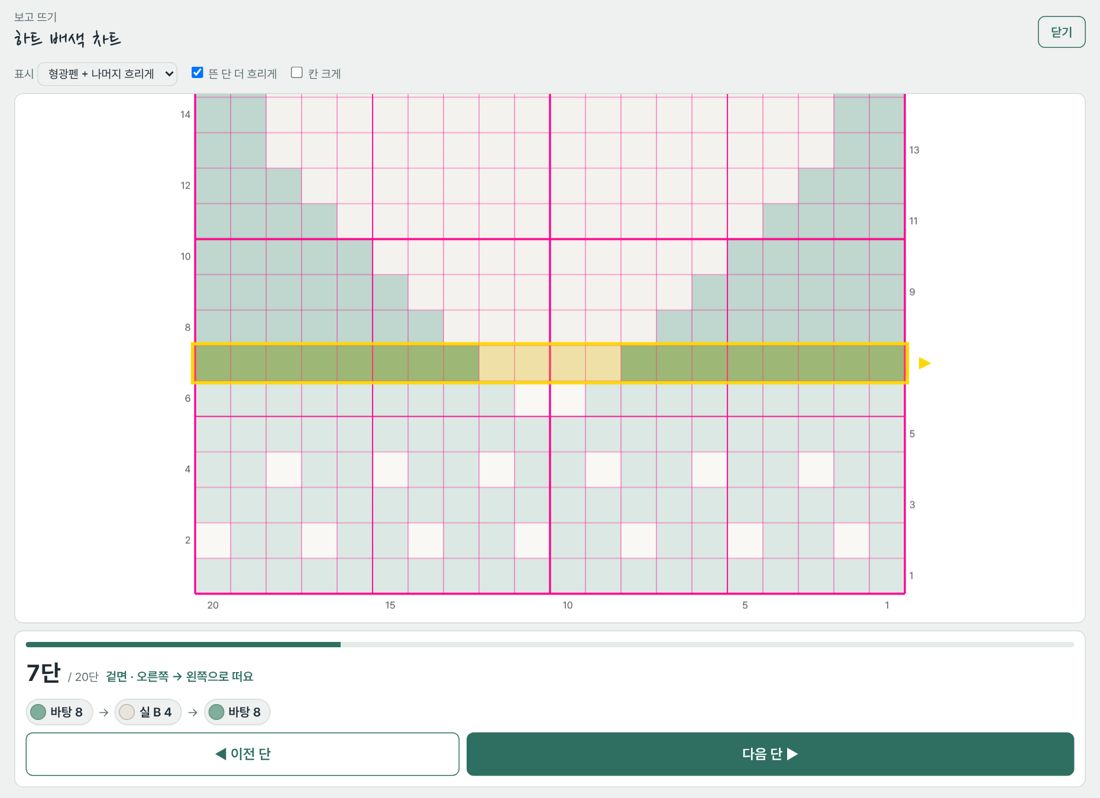
How to open it
- “Follow this chart” at the bottom left of the Make a chart page
- “Follow Along” on a colorwork chart card in My library
A chart opened from the library automatically remembers how far you got, and shows that row the next time you open it.
How to read the screen
- Highlighter band: the row you’re working on now. The other rows are faded, and rows you’ve already worked are faded even more.
- Arrow: the direction you work that row.
- “Row 7 / 20 · RS · work right to left”: the row number, right side or wrong side, and direction on one line.
- Color groups: counts the colors and stitches in working order, like “Background 8 → Yarn B 4 → Background 8.”
Moving between rows
The “Next row ▶” and “◀ Previous row” buttons are large so they’re easy to tap with your thumb on a phone. You can also tap a row in the chart to jump to it, or move with the arrow keys or spacebar on a keyboard.
Make it easier to see
- Display style: choose from “Highlighter + fade the rest,” “Highlighter only,” or “Fade the rest only.”
- Larger cells: turn this on if the cells look small on your phone. The chart gets bigger and automatically follows your current row.
Worked flat and in the round
The direction depends on the working style you chose when you saved the chart. Worked flat, odd rows go right to left and even rows go left to right. Worked in the round, every round is read in the same direction. For details, see How to read colorwork charts, flat and in the round.