Guide · How-to
Draw a colorwork chart cell by cell
How to draw a colorwork chart with the pen, fill, rectangle, and symmetry tools, then save it as a numbered chart image.
When you want to turn a picture in your head straight into a chart, use “Draw it yourself.” The expected result below updates as you color cells, so you can fix the shape before you start stitching.
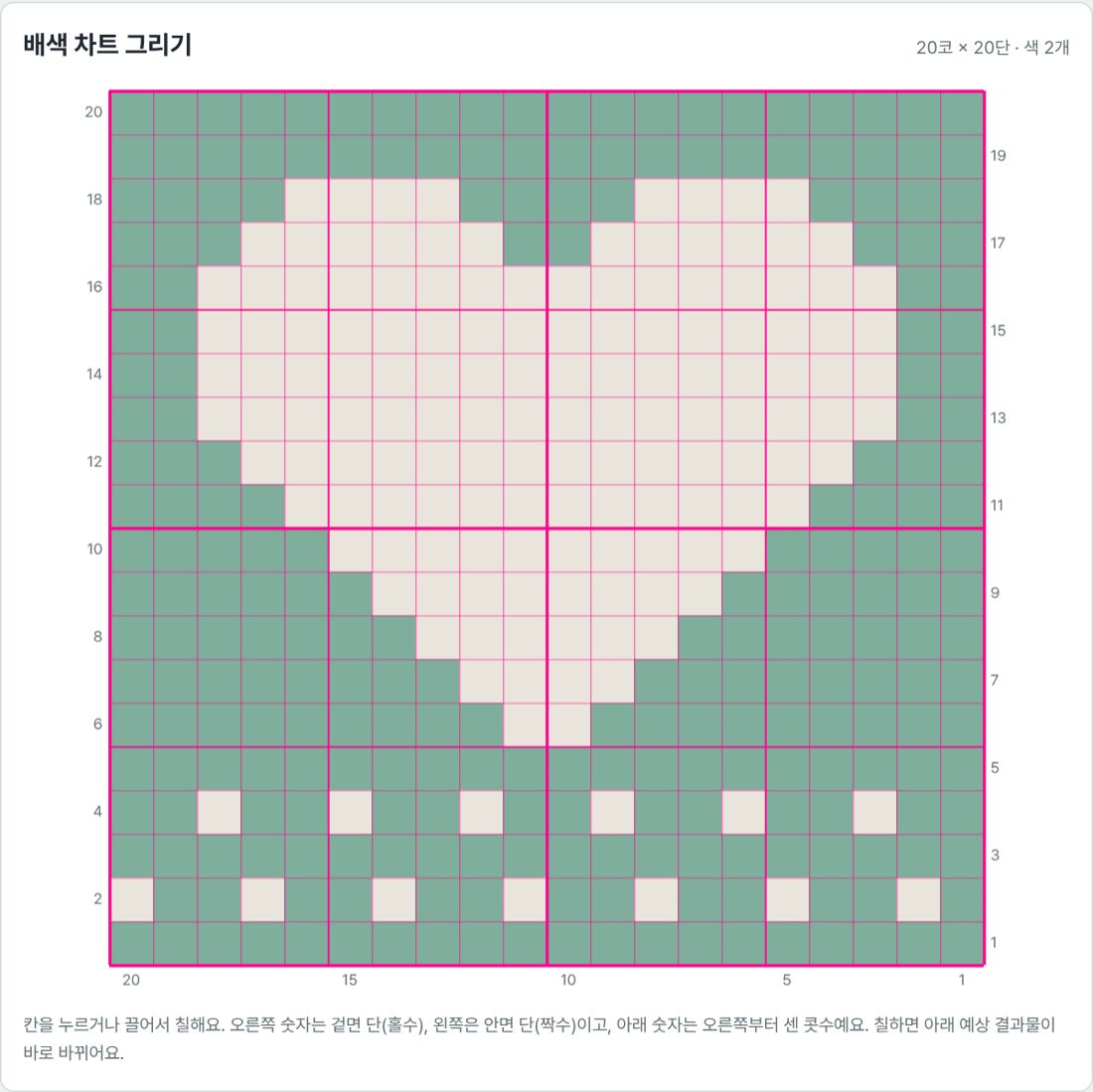
Set the size
Enter the number of stitches across and rows down under “Size” on the left, then click “Resize.” You can go from 4 stitches × 4 rows up to 150 × 150. If you’ve already drawn something, the chart grows or shrinks from the first stitch on the right of Row 1, so the part where you start stitching stays the same.
Five tools
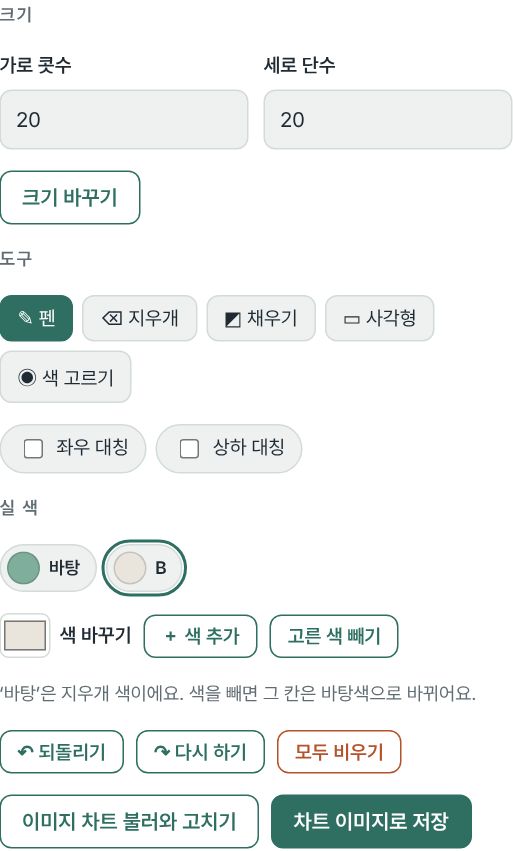
- Pen: click or drag to color. Even if you drag fast, the cells are connected so none are skipped.
- Eraser: turns a cell back to the background color.
- Fill: colors a whole connected area of the same color at once. Handy for changing a large background.
- Rectangle: drag to fill a box. Good for border bands and window shapes.
- Color picker: picks a color from the chart and switches to it.
On the keyboard, press B (pen), E (eraser), G (fill), R (rectangle), or I (color picker) to switch tools right away, and Ctrl+Z to undo.
Draw faster with symmetry
Turn on “Mirror left-right” and whatever you color on one side is colored on the other side too. For shapes that are the same on both sides, like hearts, flowers, and faces, you only need to draw half. Turn on “Mirror top-bottom” as well and all four directions are filled together, so snowflakes and stars come together quickly.
Organize your yarn colors
Use “+ Add color” to go up to 12 yarn colors. “Background” is the eraser color, and if you remove another color, its cells turn into the background color. Use “Change color” to match colors close to the yarn you actually own, and the preview becomes much more convincing.
Save as a chart image
Click “Save as chart image” to make a PNG with row numbers, stitch numbers, and a yarn color legend (Yarn A · number of stitches). You can drop it straight into a pattern PDF. The gridline color is chosen automatically as a clear color that doesn’t clash with the yarn colors in your chart.
Keep it in your library
Give it a name under “Save colorwork chart” at the bottom left, and it will be collected under “My library → Colorwork charts.” Next time you can open it to keep drawing, or start stitching right away with Follow Along.